
If you're experiencing issues with the neoTextil installer, this article will guide you through troubleshooting steps and provide insights into accessing console logs to help resolve the issue.
Access the Developer Tool
To diagnose the problem, you can access the console logs in the neoTextil installer. The installer presents a console menu that is displayed in two distinct formats depending on your operating system:
macOS:
To access the Developer Tool, you can activate it by using the keyboard shortcut Alt + Command + I
Windows:
You can activate the Developer Tool by pressing Shift + Ctrl + I
This will open the Developer Tool window.
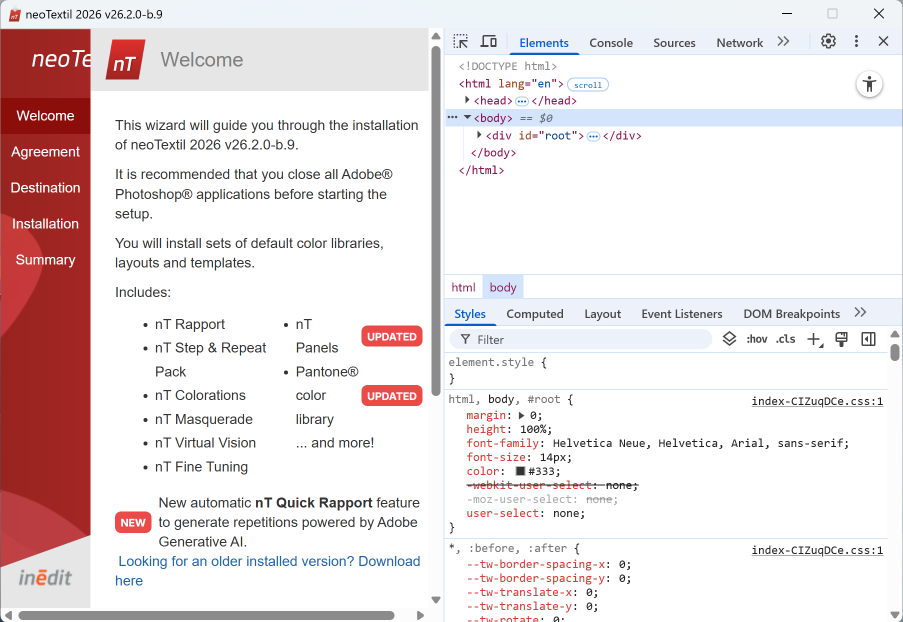
Navigating to console tab
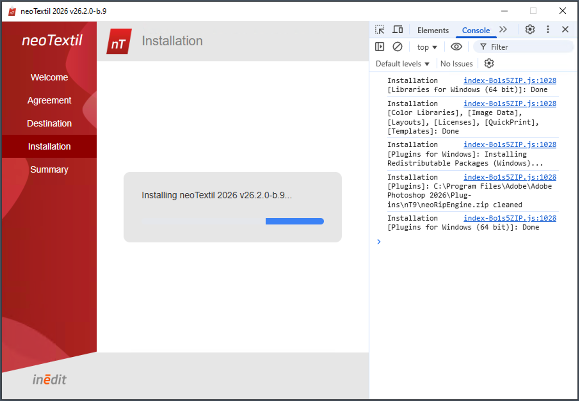
In the Developer Tool window, locate and click on the Console Tab. This tab allows you to observe the installation process of each component in real-time, which can help identify where the issue lies.
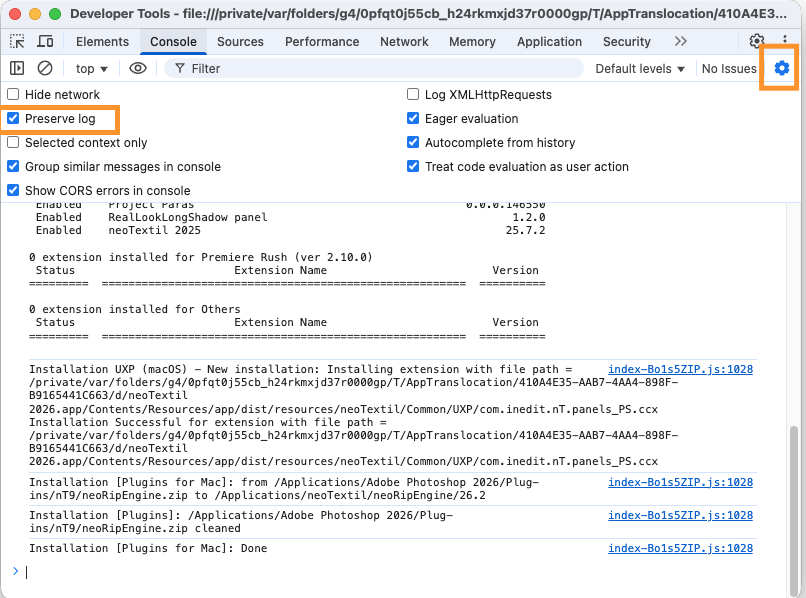
Preserving logs for future sessions
To retain the logs for future reference, you can enable the Preserve log option found within the wheel icon in the Developer Tool. This feature allows you to maintain a history of the logs, making it easier to track any recurring issues or errors during installation.
If you continue to experience issues after checking the console logs and verifying the installed versions, please refer to our related article for further assistance: