
TABLE OF CONTENTS
Problem
The USB dongle was not recognized by the computer.
Possible cause
The original USB port may not have detected the dongle correctly, or the connection may not have been stable.
Solution
Unplug the USB dongle.
Connect it directly to another USB port on the computer.
Avoid using USB hubs or docking stations.
Check the dongle light:
Continuous green light: dongle is normally detected.
Flashing green light: dongle may not be fully recognized or the connection may be unstable.
- Dongle should be detected by the activation program, after Rockey4ND.
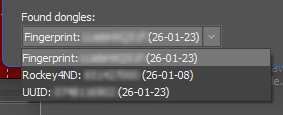
Restart the computer if the dongle is still not detected.
If the issue continues, test the dongle on another computer.
How to switch to a dongle from UUID?
- Start neoStampa.
- If the Register Form appears, close it using the X button in the top-right corner.
- Wait until the Activation Manager opens.
- Click the Info button to open the License Log.
- Connect the USB dongle to the computer.
If the dongle is already connected, click the Refresh button. - In the Found Dongle menu, select the detected dongle.
- Click Retry to validate the license using the selected dongle.
- Check the License Log for detailed information about the dongle and license validation.
- The Activator Page will display the license validation status.