
neoStampa provides built-in options to view application and license information, start a remote support session, or contact Inèdit Technical Support. These options are available directly from the top menu.
About
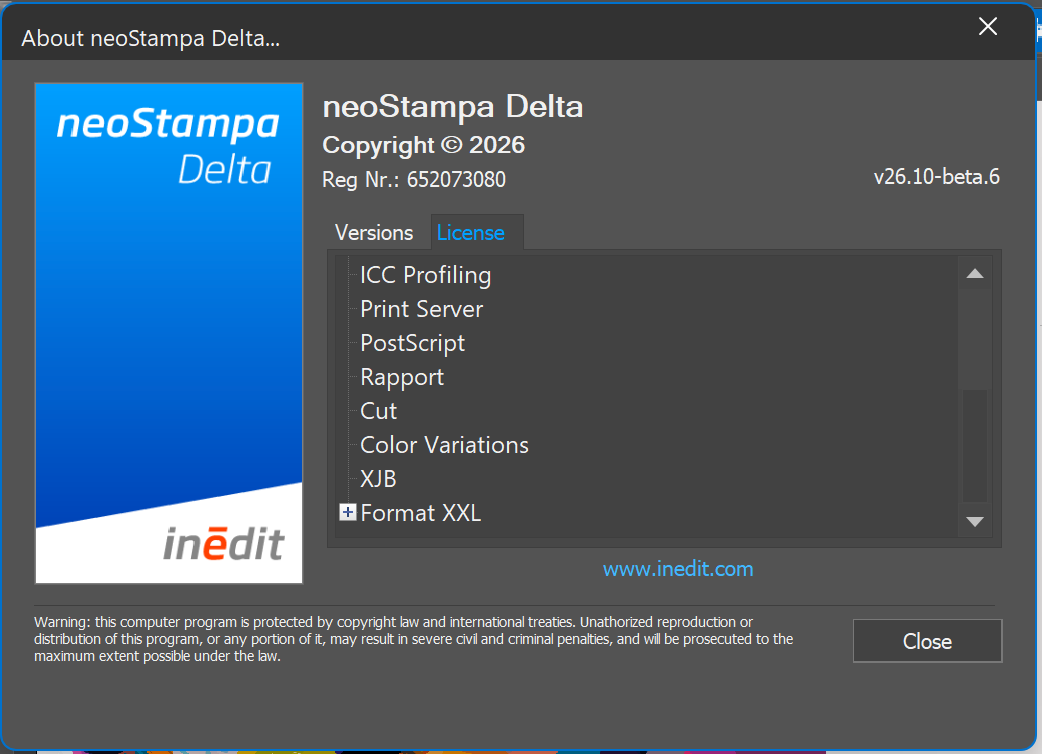
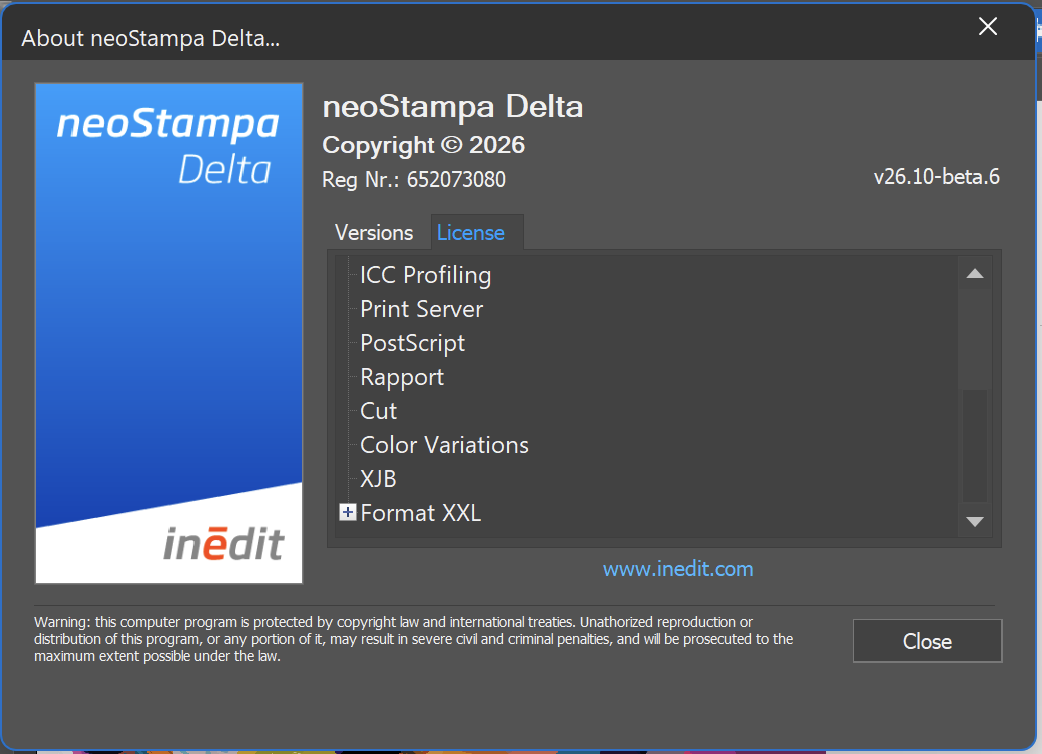
Go to Help > About neoStampa... to view information about the current neoStampa installation.
The About neoStampa window provides information such as:
neoStampa version
License information
Activated modules
This information is useful for checking your installation and may be requested by Technical Support when investigating an issue.
Change the Application Language
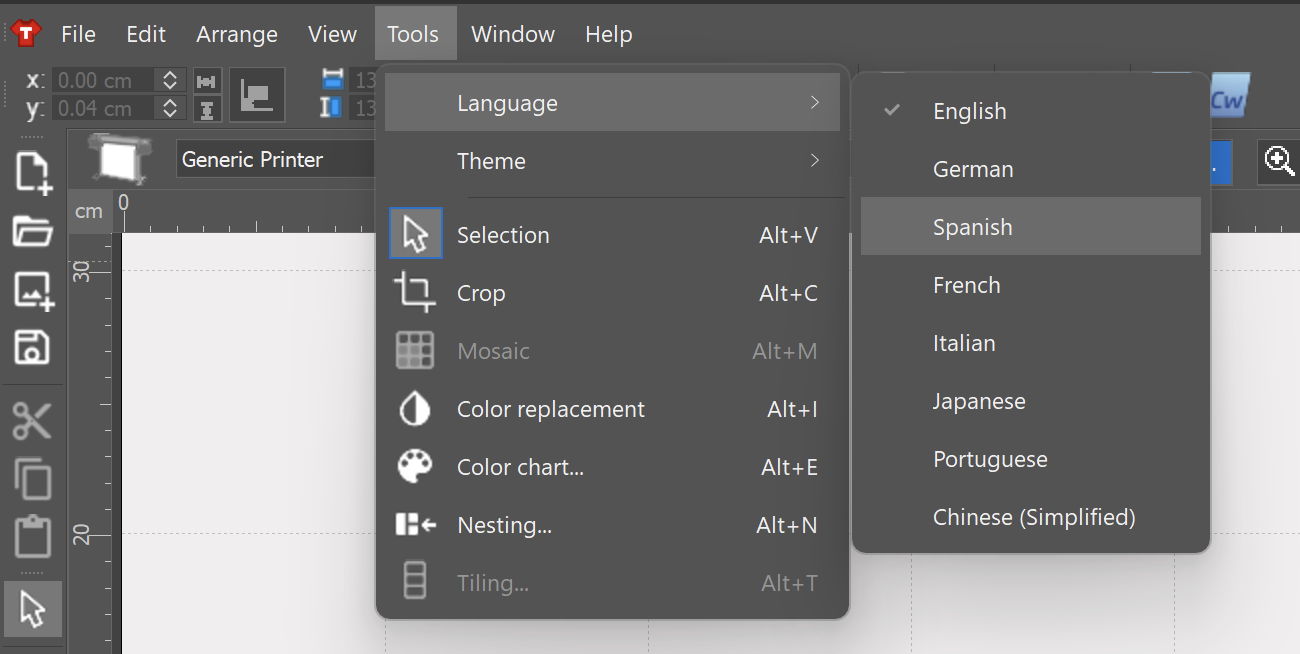
To change the neoStampa interface language:
- Go to Tools > Language.
- Select the desired language.
- Restart neoStampa to apply the change.
NOTE: Beta versions of neoStampa are compatible with the English language only.
QuickSupport
QuickSupport allows an Inèdit Technical Support agent to connect remotely to your computer when assistance is required.
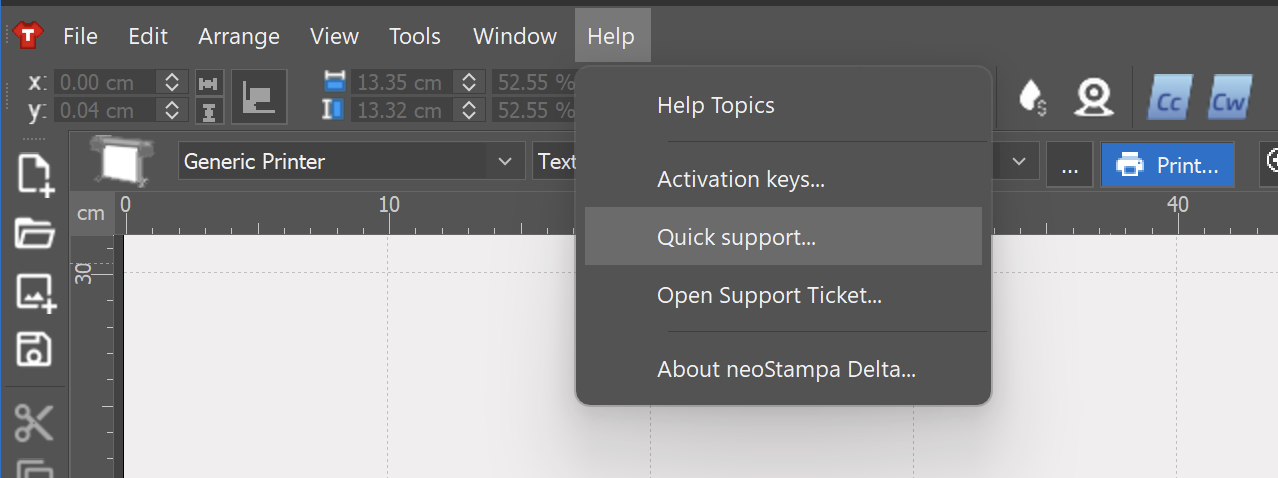
- Go to Help > QuickSupport... to launch TeamViewer QuickSupport.
- TeamViewer QuickSupport will open and display an ID and Password. Provide these credentials to the Technical Support agent when requested so they can establish the remote connection.
- If you cannot access the Help menu, TeamViewer QuickSupport can also be started manually from:
C:\Inedit\neoStampa\required\QS.exe
NOTE: The password changes every time you restart TeamViewer (unless you set a permanent one).
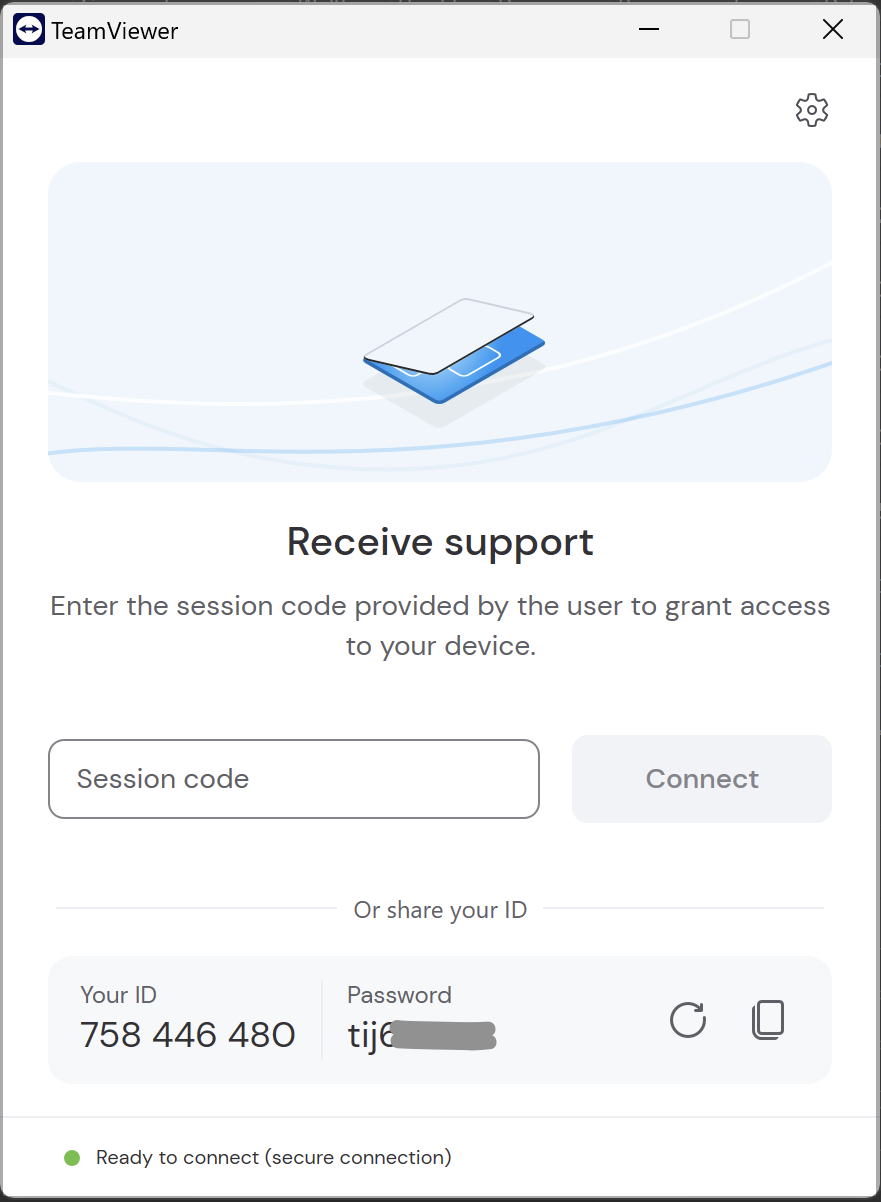
If QuickSupport does not start and you need to establish the remote connection using TeamViewer, follow these steps:
- Install TeamViewer
- Go to the official TeamViewer website.
- Download TeamViewer.
- Install the application using the default settings.
Once TeamViewer is open, locate your connection information and provide the Technical Support agent with:
- Your ID
- Your Password
You may also see a Partner ID field. This is used when connecting to another computer and is not required when allowing Technical Support to connect to yours.
The Technical Support agent will use these credentials to establish the remote connection.
For additional guidance on finding your TeamViewer connection information, refer to the following video: