
This explains how to use cutting plotter driver options. Available from 26.1 onwards.

TABLE OF CONTENTS
- How to configure the cutting driver
- Document information
- Configure the Contour Cutting options
- Configure the cutting plotter
- Generate the plt file
How to configure the cutting driver
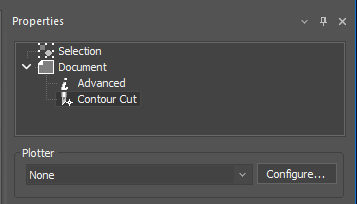
Contour Cut is a function linked to document properties, and you can access its properties by expanding the Document section on Properties. Please be aware that it's not included on all licenses, if you need it and it doesn't appear please contact our Sales department and provide you license number and the model you want to use.
To add a new cutting driver you need to:
- Click on Configure button on the right side of the Plotter list.
- The 'Add...' and 'Remove' buttons allow you to introduce the printers you require in the list of installed printers.
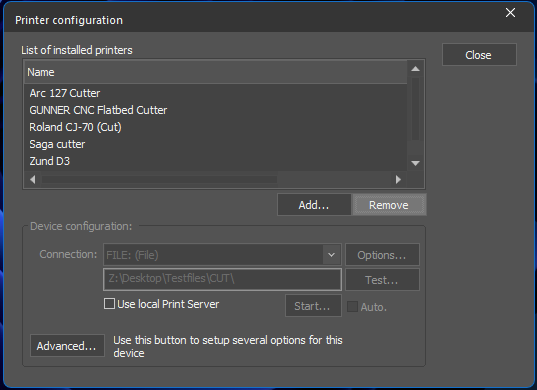
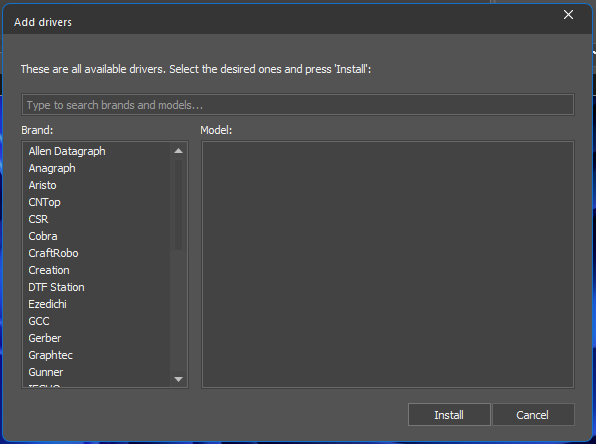
- The Add... button opens the drivers' list, where you choose your printer brand and model. If your specific cutting model is not on the list, please contact Tech Support and provide the model information as well as your license number.
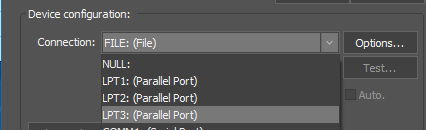
You can configure the type of connection used for each printer. To do this, select the printer from the list and then select the required type of connection in the Connectivity section.
- You can change the connection values (IP address, etc.) through the Options... button. To do this, select the printer from the list and then select the required type of connection in the Connectivity section.
- The Test… button on the lower part of the window checks the connection.
- The most common connection for cutting plotters is FILE, you just need to set up the route where you want your files to be exported.
By right-clicking on the cutting plotter or opening the Advanced button, we can access some Advanced options on the plotter:
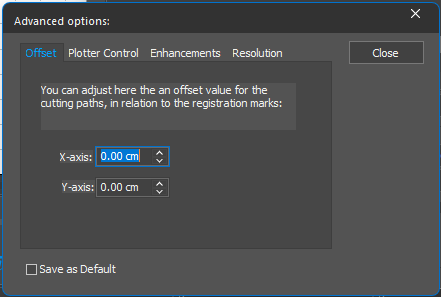
- Offset can help match the position of the cuts on the file with the actual position on the plotter.
- Plotter control has some advance speed and force controls for the plotters that allow these settings.
- Enhancement help improve the quality on the cut, mainly for old devices.
- Resolution allows to adjust the conversion between the units on the files and the plotter, if necessary.
Plotter options
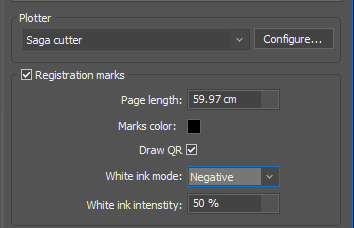 There are several options we can set on the plotter when we activate the registration marks, which are pre-defined for each plotter according to the manufacturer specifications.
- Registration marks adds marks (circles or squares) indicates the position to the plotter so the cuts match the print.
- Page length. When the print length exceeds the length of the plotter, the application can separate this print in different pages that will be cut in sequence.
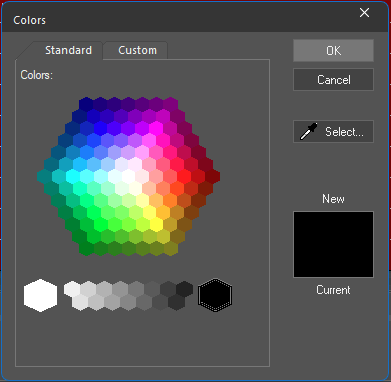
- Marks color can define the color of the marks (and the QR codes) to adjust excess inks or to adjust to cutting machine specifications.
- Draw QR code adds a QR code next to four corner position points. The content of this QR code is taken from the job name (on the tab), which is also the name neoStampa uses to export the cutting file; so the plotter can automatically load the cutting file.
- White ink modedefine the behaviour of the marks and QR codes to improve reading on the cutting plotters.
- Default prints the marks on the defined color with a layer of white ink on top.
- Don't use only prints the color we've defined for the marks, but no white ink on top.
- Negative prints the marks with the defined color and a white area around. This option is generally used when printing DTF as allows the cutting plotter to read the marks from both sides of the film.
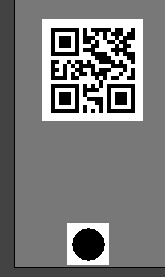
- White ink intensity lets the user adjust the quantity of white ink used to prevent excess ink to flood over and render the QR codes or the position points illegible.
Some plotters can only read a QR code up to a certain size or version, so the QR neoStampa generates sometimes is limited to 8 characters o 15 numbers. If you activate the QR and nothing appears, please change the name on the job tab to a group of numbers and check again.
Document information
This option will print information on the end of the print, similar to the page statistics.
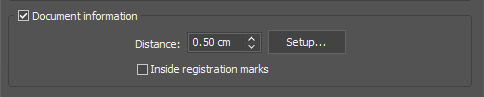
There's an option to print this information Inside registration marks so the information is inside the cutting zone.
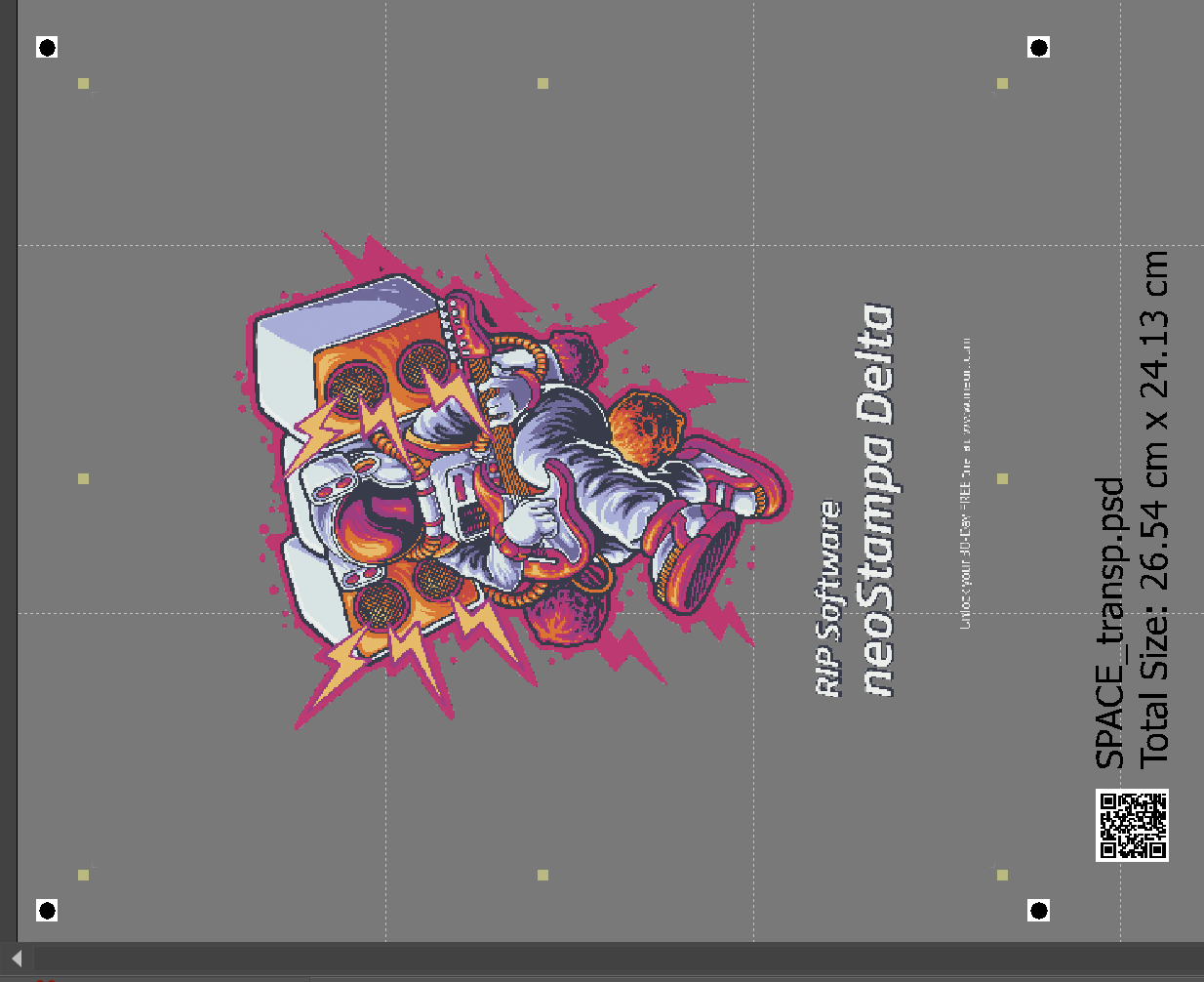 Document information with Inside registration off. Document information with Inside registration off. | 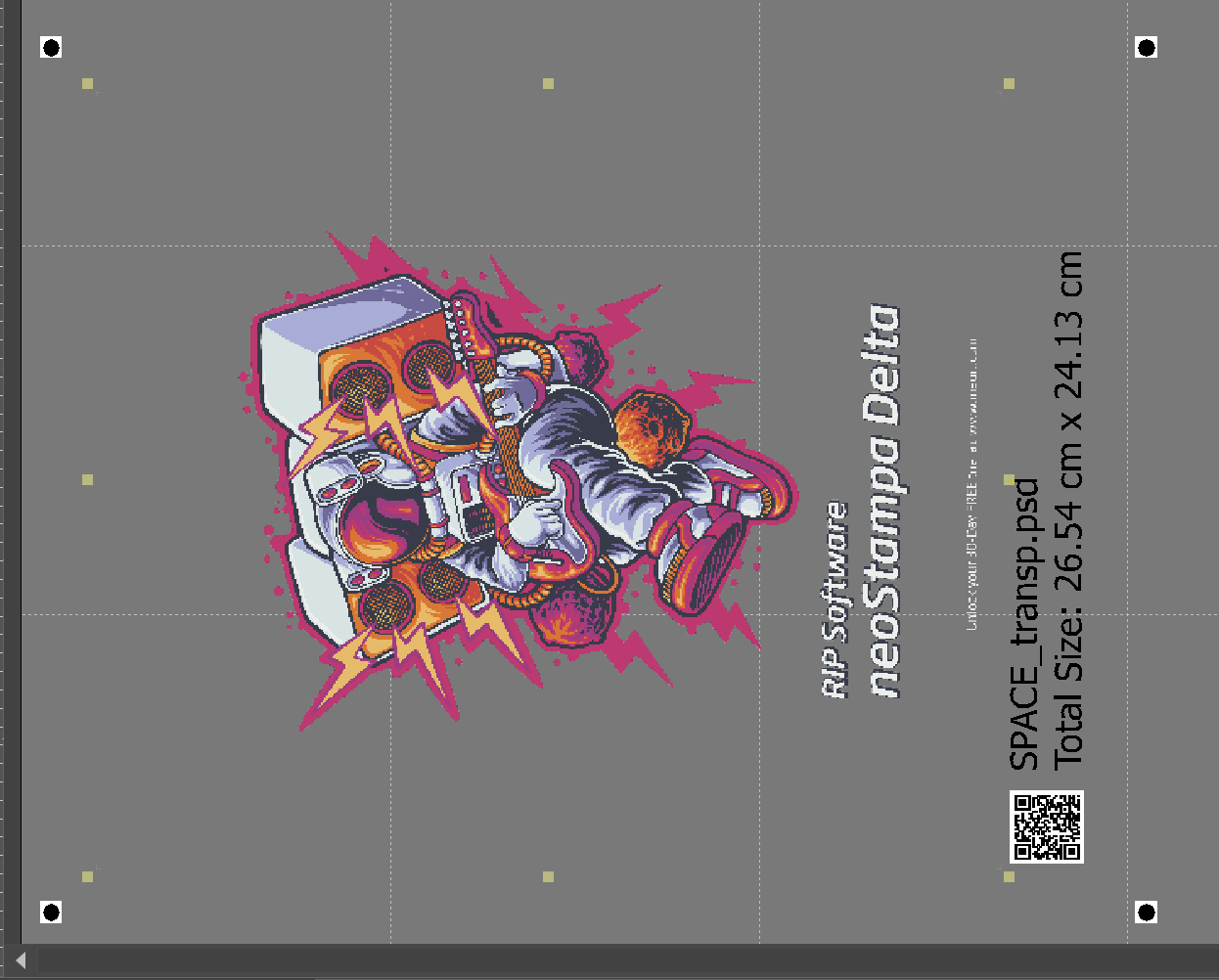 Document information with Inside registration active. Document information with Inside registration active. |
Configure the Contour Selection options
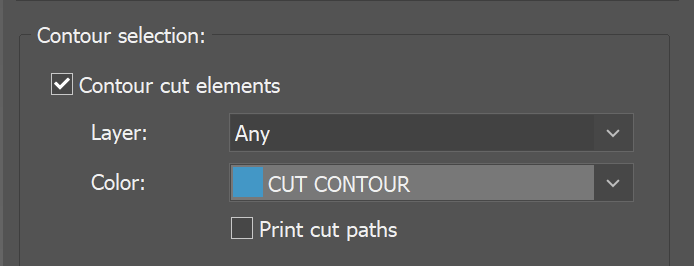
We need to set up the contour options for each imported design. We can access these options by selecting each document and opening the Properties menu on Selection | Contour selection. We have several options.
- On Contour cut elements we can import cutting paths directly the document. These paths can be at layer level or defined with a spot color. There's an additional option to Print cut paths, which by default are not printed.
- On Registration marks we can use the marks we've defined on the design file. These can be defined at layer level or defined with a spot color.
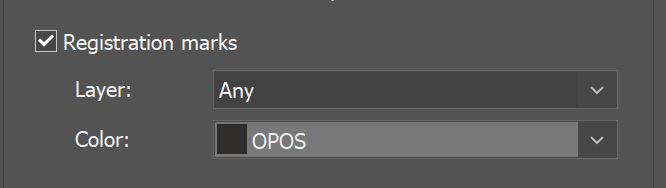 On both cases, it's recommended the contour cut and registration marks are on different layers so the application can properly detect these paths.
 - Cut surrounding box sets the cutting path on the edge of the image.
- Cut shape outline uses the transparency on the design to trace a cutting path around the object. Since the path is calculated for each object, it can take a few moments to be generated. A Distance can be set on both cases so the cutter doesn't cut part of the design.
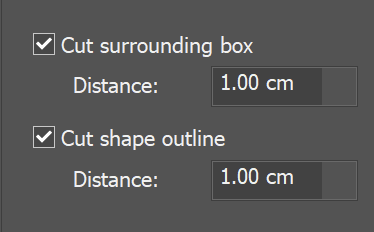

- All these options can be set by default by clicking on the disk icon at the bottom of the Properties menu.

Although each imported object can have different contour cut properties, this is not the same case for copies generated with Mosaic. All the objects inside the Mosaic will share the same properties, so all contour cuts will be the same.
Generate the plt file
When the contour cut of all objects have been defined, as well as the plotter and position marks options, we can Print the job and click Cut... to open the cutting menu and generate the cutting paths.
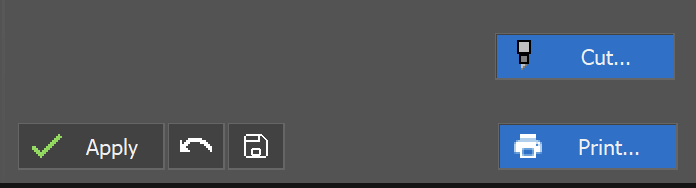
There are some options to take into account when generating the cutting paths:
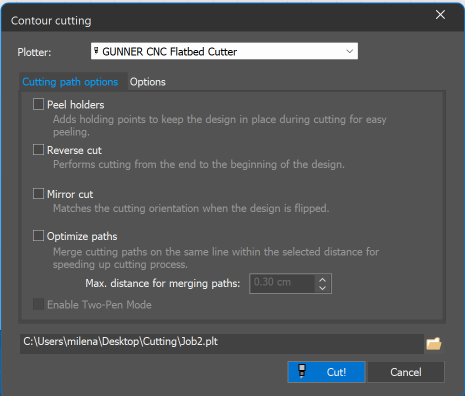
- Peel holders leaves a small space on each corner of the cut, so the pieces don't fall off.
- After a long job is printed and rolled, when we introduce the roll on the cutting plotter the first thing we have is actually the last we've printed. If this is the case, we can activate the Reverse cut option and the cut file will be rotated 180 degrees.
- Mirror cut option wil flip horizontally the cut file to match the print. If we cut a job printed on transparent film, for example, we can generate the file to cut on the front or on the back.
- If we have a lot of straight cuts (boxes, for example), we can Optimize paths to minimise the cutting time. Parallel cuts that are close (defined by Max disttance) will be merged, if possible lines will be cut continuously, and all cuts will be organised to minimise cutting time.
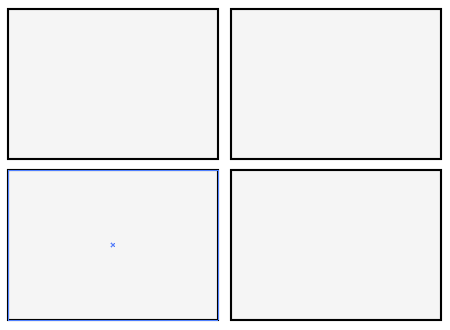 Example of square cutting paths, independent.
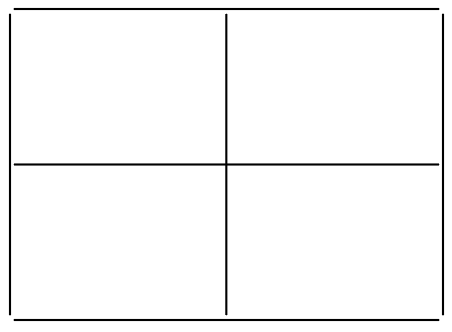 Optimised cut (gaps are for visualisation purposes).
- Some cutting machines allow the use of Two-Pen mode, for different strengths for example. Two-pen mode for works only with shape outline and surrounding box cuts.The shape outline is always assigned to Cutter 1, and the surrounding box is always assigned to Cutter 2. This behavior is pre-defined and cannot be changed, so there is no option to choose which cutter is used for each element. In practice, one color is used for the shape and another for the box.
And we can change some properties on the actual machine, if the driver allows us to:
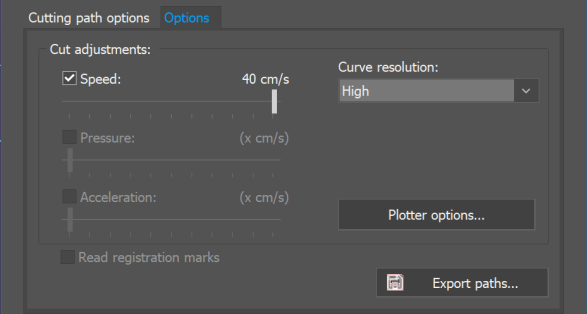
- Some machines' Speed, Pressure and Acceleration can be defined.
- Cutting plotters always cut in straight lines, so we can set the Curve resolution to define how many steps we want to use (the higher the resolution, the more time is needed to cut).
- Plotter options gives us access to the advanced options (offset, plotter control,...).
- With Export paths we can export the cuts into a CT5 file.
- The export path and the file can be changed, by default these are defined on the plotter configuration (path) and by the job name (what appears on the tab).
Related articles:
Configurations for Contour Cutting Paths